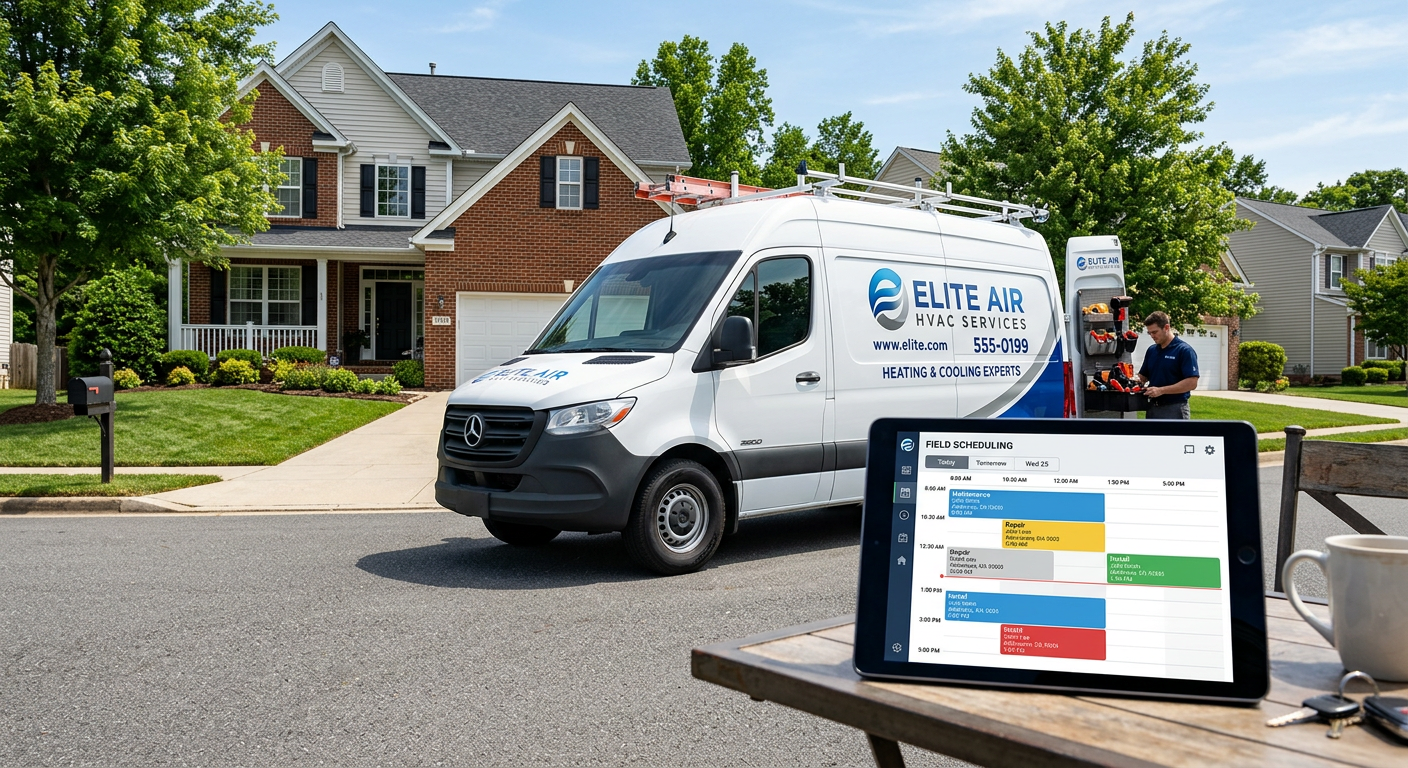
AI automation works with Jobber by connecting through their Application Programming Interface (API) to sync customer data, schedule appointments, and update job statuses. You can integrate custom AI agents to handle lead intake, answer common customer questions, and route emergency service requests directly into your Jobber workflow without manual data entry. Whether these automations are read-only or can write new data depends largely on your Jobber plan and the specific permissions granted to the API connection.
Can AI really talk to Jobber in real-time?
AI can communicate with Jobber in real-time using webhooks and API endpoints to ensure your field staff and office team are always looking at the most current information. When a new lead interacts with an AI receptionist or a website chatbot, the system can instantly check your Jobber calendar for availability or create a new "Request" or "Client" record. This removes the "double-entry" problem where an office manager has to copy information from an email or a voicemail and paste it into Jobber.
For service businesses like HVAC, plumbing, or landscaping, this speed is critical. If a homeowner has a burst pipe or a failing AC unit, they are often calling the first three names on Google. An AI agent that can instantly book a diagnostic fee or a quote request directly into your Jobber account secures that lead before they call your competitor. Because the average HVAC service ticket ranges from $400 to $1,200, missing just one or two of these calls due to a full voicemail box or a slow response time represents a significant loss in monthly revenue.
What parts of Jobber can AI actually control?
AI automation typically interacts with four main areas of the Jobber platform: Clients, Requests, Tasks, and Invoices. Depending on how the integration is built, an AI agent can perform a variety of administrative actions that usually require a human sitting at a desk.
- Client Creation: Automatically generating new client profiles from website chats or phone calls.
- Request Management: Taking raw lead data and turning it into a formal Jobber Request for the office to review.
- Calendar Syncing: Reading current schedule blocks to tell a customer when your next available opening is.
- Note Updates: Transcribing a phone conversation and attaching it as a private note to a specific job or client record.
It is important to understand that automations should be built to support your team, not replace their judgment. In a professional service environment, we often set these systems to create a "Request" rather than a "Job." This allows a human dispatcher to glance at the details and confirm the scheduling before a technician is officially dispatched. This "human-in-the-loop" approach prevents the AI from making mistakes that could disrupt your field operations.
Does this require a specific Jobber plan?
Yes, your ability to use AI automation is limited by the specific Jobber tier you pay for, as API access is generally reserved for their higher-level plans. Jobber typically restricts third-party integrations and API keys to their "Connect" and "Grow" plans. If you are on a "Core" or entry-level plan, you may be able to send data out via simple tools, but you will likely be unable to have an AI agent write data back into your account or check your schedule in real-time.
Before investing in custom AI tools, you should verify that your account has API access enabled. Without this, the AI is effectively "blind" to your current business state. While some workarounds exist using email parsing, they are less reliable and much slower than a direct API connection.
How does an AI receptionist handle Jobber leads?
An AI receptionist handles Jobber leads by acting as a 24/7 intake layer that qualified callers and populates your CRM automatically. When a customer calls, the AI identifies the service they need, captures their contact information, and checks if they are a returning customer by searching your Jobber database. If the caller needs an emergency repair, the system can flag the entry as high priority or even trigger an automated escalation to your on-call technician.
From the field: A 24/7 AI receptionist for a Wisconsin HVAC client now answers 100% of inbound calls, resulting in zero missed leads since deployment. For this operator, no-heat emergencies reach the on-call tech in under 60 seconds, ensuring that high-value emergency calls are never buried in a voicemail box over the weekend. This level of responsiveness is often the difference between winning a job and losing it to the next person on the list.
What are the limitations of Jobber AI integration?
The primary limitation is that AI cannot "see" or interact with the Jobber user interface the way a human does; it can only see the data the API allows it to see. For example, if Jobber hasn't made a specific field—like a custom line item or a specific attachment type—available through their developer portal, the AI cannot touch it. This means your workflow must be designed around the data points that are actually accessible.
Another limitation is the complexity of scheduling. While AI can see "open blocks," it often lacks the nuanced context a human dispatcher has, such as knowing that Technician A is faster at water heater installs than Technician B, or that traffic in a certain part of town is bad at 4:00 PM. We recommend using AI to capture the lead and offer a general timeframe, but leaving the final "hard" scheduling to your dispatch team. Similar logic applies to other platforms; for instance, you can see how AI automation works with ServiceTitan to compare how different field service softwares handle data flow.
Is it worth the effort for a small trades business?
For a business running 5 to 15 trucks, the decision to automate Jobber usually comes down to how much time the office staff spends on "clerical drag." Clerical drag is the time spent answering the phone to say "we're busy right now," typing addresses into a computer, and playing phone tag to confirm appointments. If your office manager is spending two hours a day on data entry, that is ten hours a week that could be spent on high-level tasks like sales or customer retention.
We typically see between 4-10 hours per week recovered per person on back-office workflows when these manual steps are automated. This isn't just about saving money; it’s about increasing the capacity of your current team so you don't have to hire another office person just to handle the paperwork that comes with growth.
| Feature | Standard API Capability | AI Benefit |
|---|---|---|
| New Leads | Create Client/Request | No more manual entry from voicemails |
| Scheduling | Read/Write Calendar | Instant booking for diagnostic calls |
| Client History | Search Existing Records | AI knows the customer's name when they call |
| Job Notes | Append Text to Records | Transcripts of calls saved automatically |
How to get started with Jobber automation
The first step is to map out your current "path of a lead." Trace exactly what happens from the moment a customer clicks a Google Ad or calls your number to the moment a tech is dispatched. Anywhere a human is simply moving data from one screen to another is a candidate for AI automation. Once those points are identified, you can determine if a standard integration tool works or if you need a custom-built solution to handle more complex logic.
If you aren't sure where the bottlenecks are in your Jobber setup, it helps to have an outside perspective. We look at your current software stack and your actual daily operations to see where you are losing the most time or missing the most leads. We won't recommend a solution unless the math makes sense for your specific volume and team size.
By Jon Pfeiffer, Founder of Pfeiffer Digital. Jon spent years in product and engineering roles at companies like Disney and Amazon before founding Pfeiffer Digital to help service businesses in Wisconsin and beyond use AI to reclaim their time.
Get your free AI auditFrequently Asked Questions
How does AI connect to Jobber?
AI connects to Jobber through its API (Application Programming Interface). This allows an AI agent to read your schedule, create new client profiles, and log service requests directly into the system. It requires your Jobber plan to have API access enabled, which is usually found on their higher-tier subscriptions.
Can an AI receptionist book appointments in Jobber?
Yes, but with caveats. An AI can see open slots in your Jobber calendar and offer them to customers during a phone call or chat. However, most operators prefer to have the AI create a 'Request' that a human then approves, ensuring that your dispatch team maintains final control over the day's routing.
What are the biggest mistakes when automating Jobber?
AI is excellent at 'clerical' tasks—taking down a customer's name, address, and problem, and putting it in Jobber. It is not a replacement for a skilled dispatcher who understands the nuances of your technicians' skills or complex job requirements. Think of AI as an assistant that prepares the work for your human team to review.